

How to setup Mirror mode on Gorgias
Mirror mode works through an HTTP integration in Gorgias. Once it is on, Gorgias notifies Zuzana every time a ticket is created or a new message arrives on one. The setup takes about five minutes.
Before you start
Have your Gorgias subdomain ready. It is the first part of your Gorgias address: for https://zuzana.gorgias.com the subdomain is zuzana.
Set up the integration
Open HTTP integrations
In your Gorgias dashboard, click the Settings icon (the gear) in the bottom left corner. In the sidebar, under Apps, select HTTP integration.
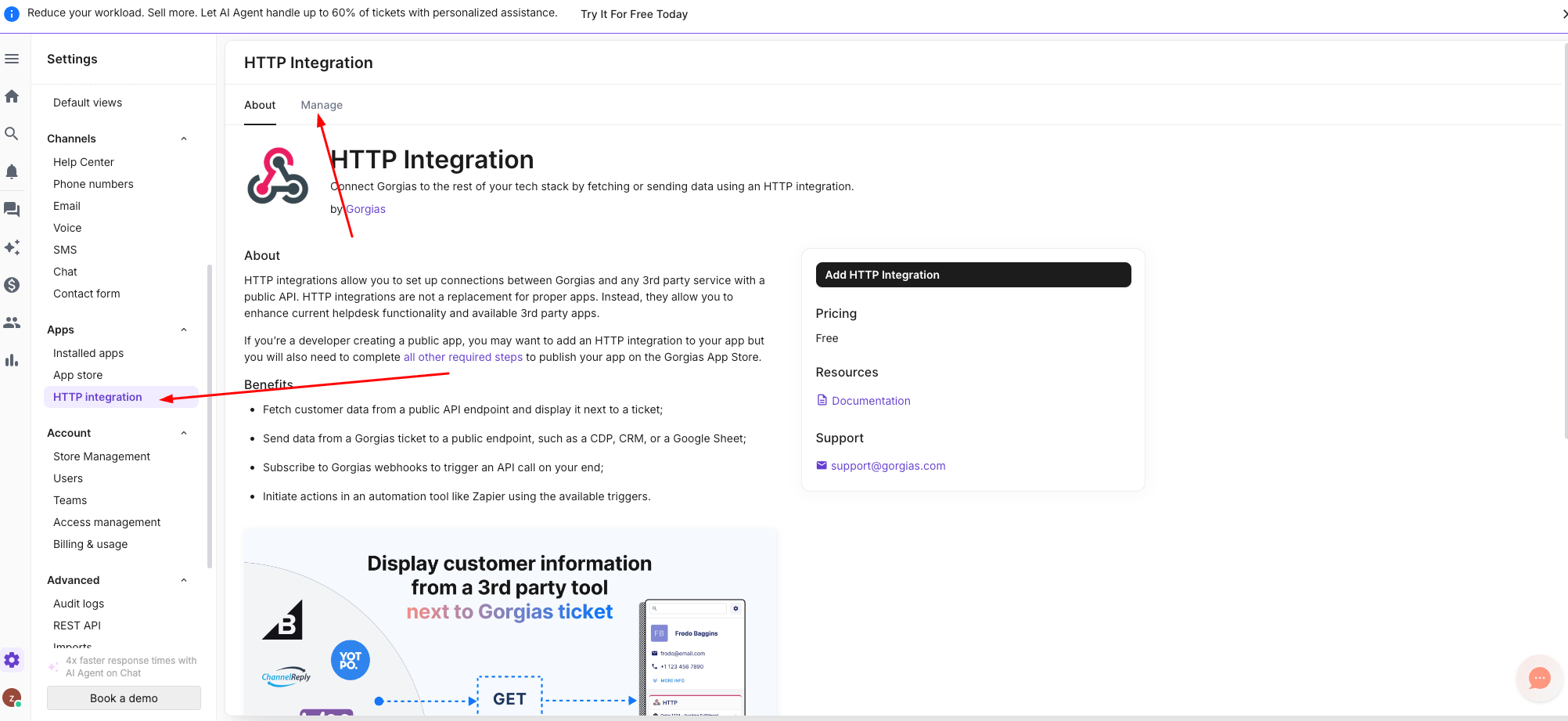
HTTP integration sits under Apps in the settings sidebar. Add a new HTTP integration
Open the Manage tab at the top of the page, then click Add HTTP Integration in the top right corner.
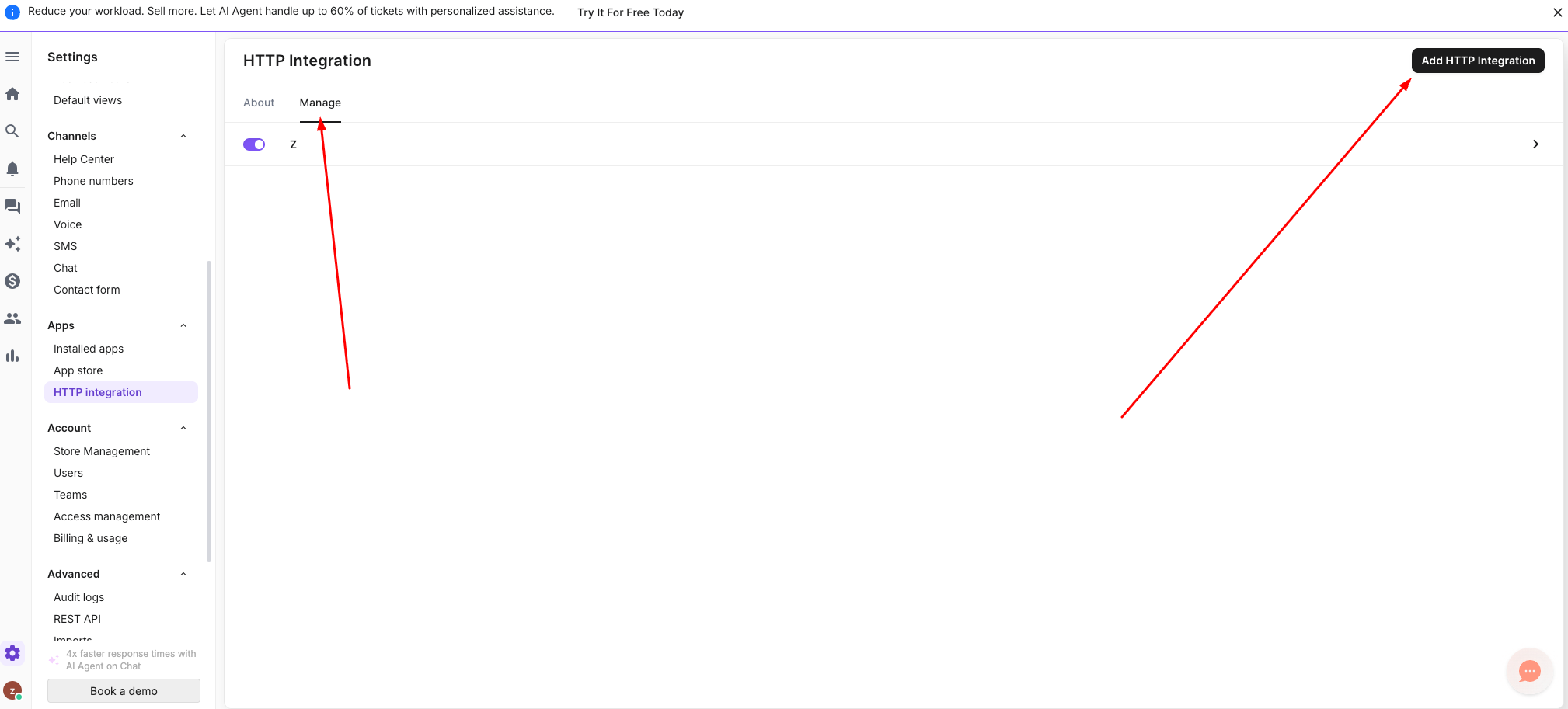
The Manage tab and the Add HTTP Integration button. Name it and choose the triggers
Integration name:
ZuzanaTriggers: tick Ticket created and Ticket message created. Leave the others off.
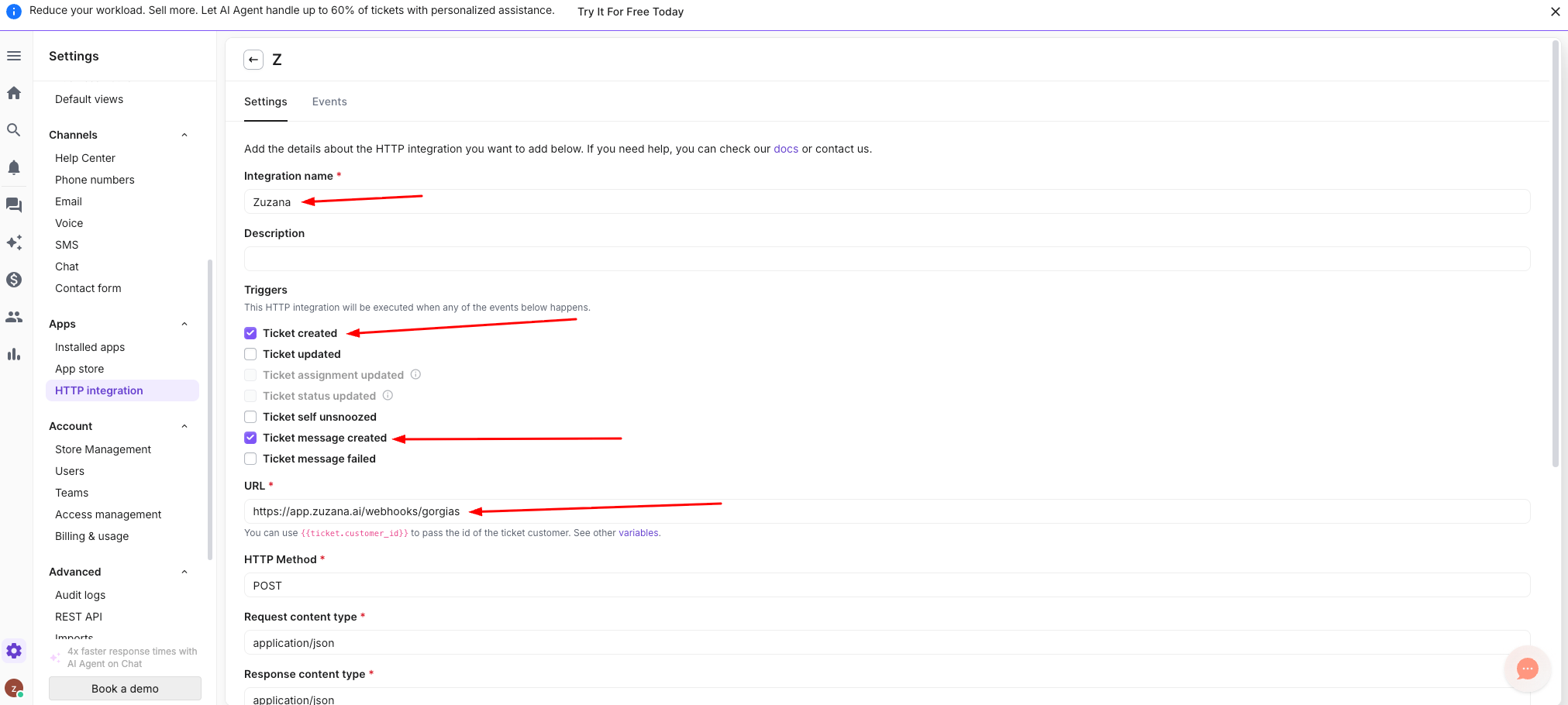
The name and the two triggers. Point it at Zuzana
Scroll down to the connection settings and fill them in like this:
URL:
https://app.zuzana.ai/webhooks/gorgiasHTTP method: POST
Request content type: application/json
Response content type: application/json
Add the request body
Under Request Body (JSON), choose JSON template from the dropdown and paste this:
{
  "domain": "YOUR-SUBDOMAIN",
  "gorgiasId": "{{ticket.id}}"
}
Replace
YOUR-SUBDOMAINwith your own Gorgias subdomain and leave{{ticket.id}}exactly as it is. If your Gorgias address ishttps://zuzana.gorgias.com, the body looks like this:{ "domain": "zuzana", "gorgiasId": "{{ticket.id}}" }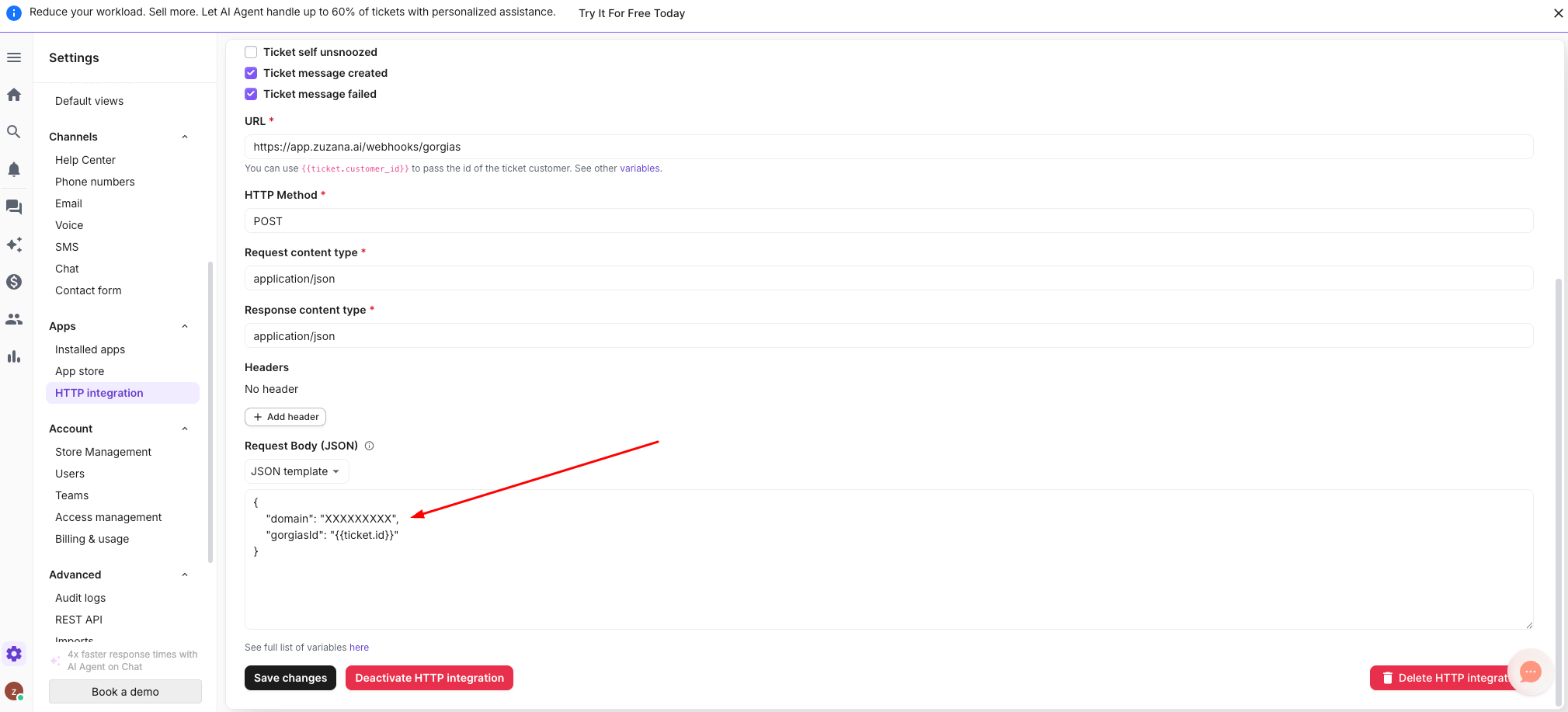
The connection settings and the request body, filled in. Save and turn it on
Click Save changes in the bottom left corner. Back in the Manage list, make sure the toggle next to the integration is on (it turns purple).
Not seeing tickets in Zuzana? The usual cause is the
domainvalue. It must be the subdomain only, withouthttps://and without.gorgias.com.
Did this answer your question?