

How to connect to Zuzana's MCP
- Open Connectors. In the Claude sidebar, click Customize, then choose Connectors in the settings panel that opens. (On claude.ai: Settings → Connectors.)
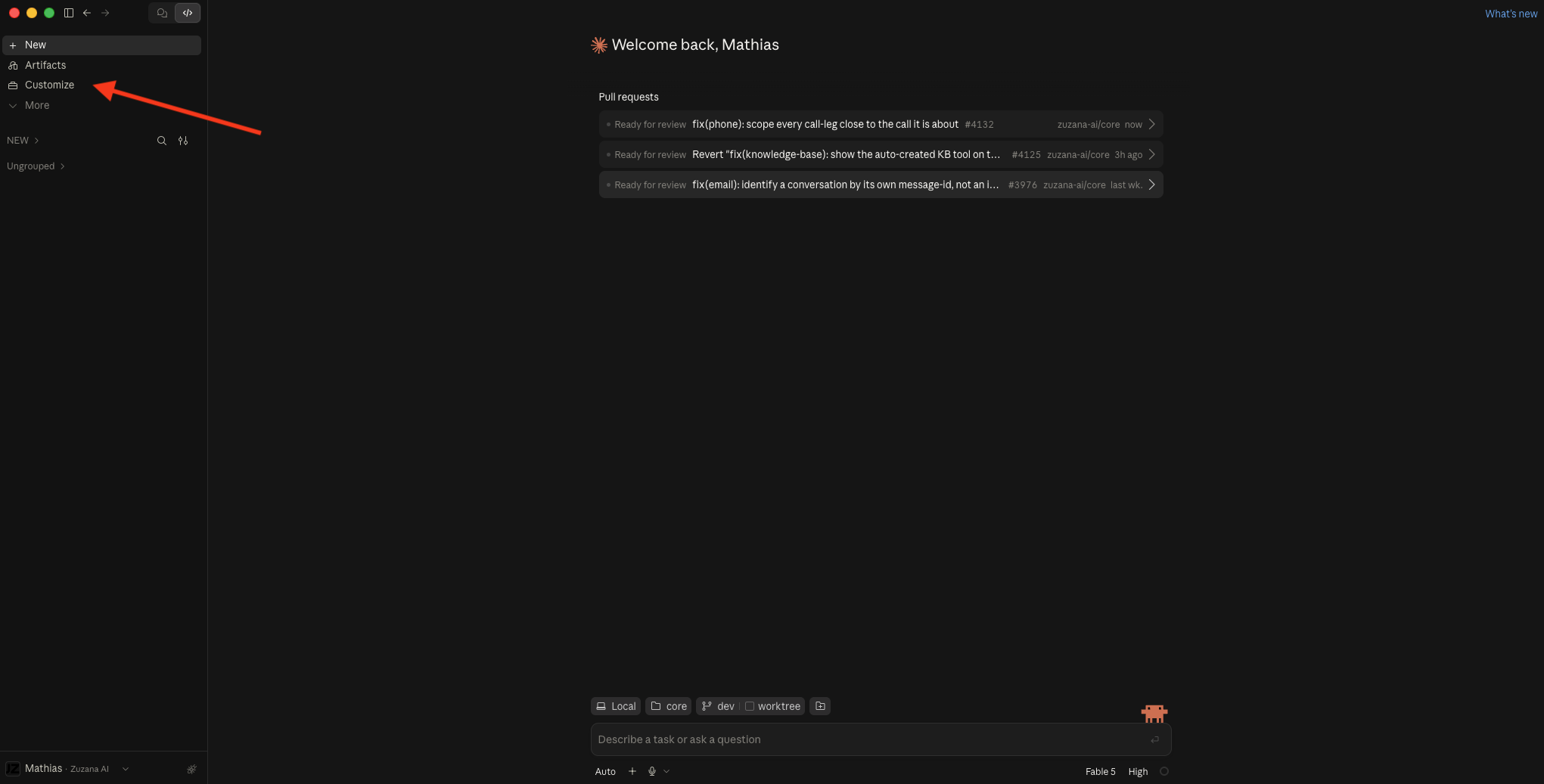
Step 1 - Add a custom connector. Click the Add button in the top right and pick Add custom connector from the dropdown.
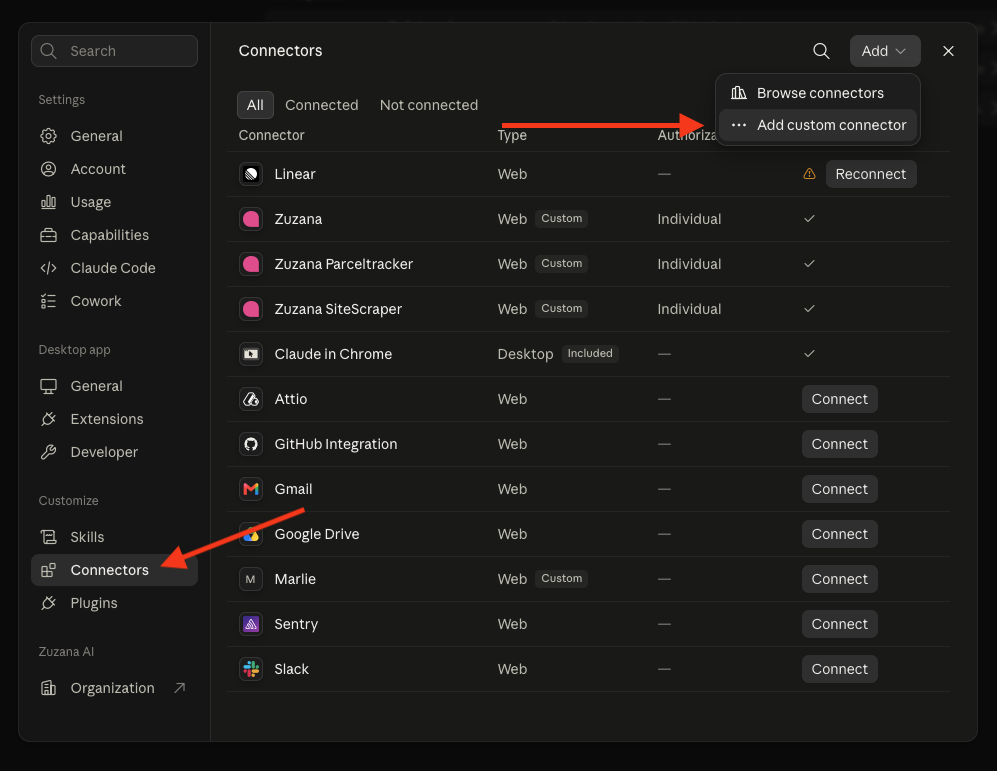
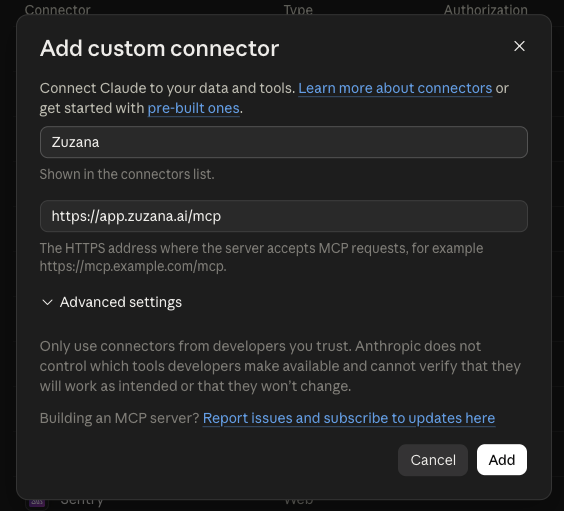
Step 2 - Fill in the name and URL, then click Add:
- Name: Zuzana
- Remote MCP server URL: https://app.zuzana.ai/mcp
Step 3
- Sign in when prompted. Claude opens Zuzana's login page in your browser. Sign in with your normal Zuzana account and approve the authorization. When you return, the connector shows a checkmark under Authorization = Individual.
- Use it. Start a new chat and ask something like "list my team's workflows" or "show me yesterday's escalated conversations". Claude picks the right Zuzana tool automatically.
What the connector can do
The server exposes the same actions you have in the Zuzana app, as tools Claude can call on your behalf:
- Inspect: conversations, orchestrator runs (including diagnose and explain), LLM request logs, metrics and metric breakdowns, customer health.
- Configure: workflows, policies, guardrails, macros, articles, chat flows, IVR flows, markets, business hours, custom agent tools.
- Operate: start test runs, run competitor ticket imports, manage reports, search the knowledge base.
Everything runs under your account, so team scoping and permissions apply exactly as they do in the app.
Did this answer your question?