

How to import tickets from Gorgias
Phase 1: Locating Your Credentials
To authenticate with the Gorgias API, you typically need three pieces of information: your Subdomain, your Username (the email you log in with), and your API Key.
- Find your Subdomain: Look at your browser’s URL when logged into Gorgias. It will look like https://your-store.gorgias.com. In this case, your-store is your subdomain.
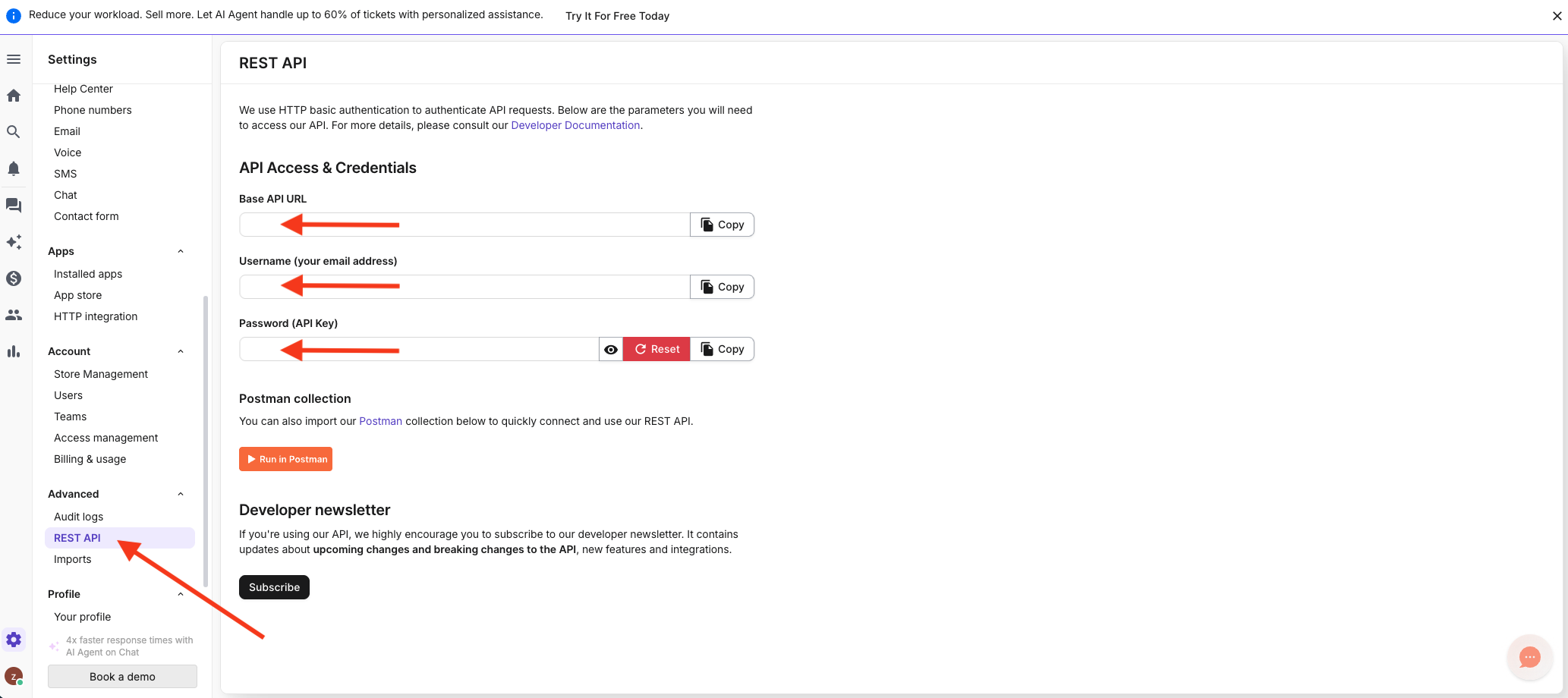
- Generate the API Key:
- Navigate to Settings (the gear icon).
- Go to You → REST API
- Click Generate API Key (or use the existing one if already available).
Phase 2: Connecting Gorgias with Zuzana
Now that you have your Gorgias subdomain, email, and API key ready, it’s time to bridge the gap. Connecting these platforms allows Zuzana to import your tickets and start automating your workflow.
Follow these steps to complete the integration:
- Step 1: Navigate to Integrations: Log in to your Zuzana dashboard. Click on your profile name in the top right corner and select Settings from the dropdown menu. Once in the settings area, look at the left-hand sidebar under the General section and click on Integrations.
- Step 2: Select the Gorgias Helpdesk: In the Integrations marketplace, scroll down to the Helpdesk category. Locate the Gorgias card and click the pink Connect button.
- Step 3: Input your credentials: You will be redirected to the "Create Integration" screen. Fill in the following fields exactly as they appear in your Gorgias account:
- Enable Toggle: Ensure this is switched to the On (pink) position.
- Domain: Enter your Gorgias subdomain.
Note: Only enter the unique part of your URL. For example, if your URL is https://brand-name.gorgias.com, just enter brand-name.
- Email: Enter the email address associated with your Gorgias account (the one you used to generate the API key).
- API Key: Paste the long string of characters you generated in Phase 1.
Did this answer your question?