

Zuzana's MCP server
What is Zuzana's MCP server?
MCP (Model Context Protocol) is an open standard that lets an AI assistant you already use, such as Claude, work with other systems. Zuzana's MCP server lets that assistant read and change your Zuzana setup through your own login, so you can ask about your support and make changes in plain language.
The server address is https://app.zuzana.ai/mcp. Each connection signs in as one person and works on one team.
Who can connect to Zuzana's MCP server 🔐
- Admins only. The MCP server can read every conversation and change your AI setup, so only users with the Admin role can connect. Someone with the User role sees "Only team admins can connect" on the approval screen and gets no Authorize button. Roles are set under Settings → General → Users.
- Checked on every call. If an admin is changed to User, their connection stops working on the very next request.
- One team per connection. When you approve the connection you choose the team it works on. If you belong to more than one team, the approval screen shows a Team dropdown, preselected with the team you last worked in. With one team there is nothing to choose.
- Workspaces. Each brand is its own team, so a connection works on one brand at a time. There is no workspace-wide connection: reconnect and pick another brand to switch.
Connect Claude (desktop app or claude.ai)
Everyone connects with their own Zuzana login. It takes about a minute.
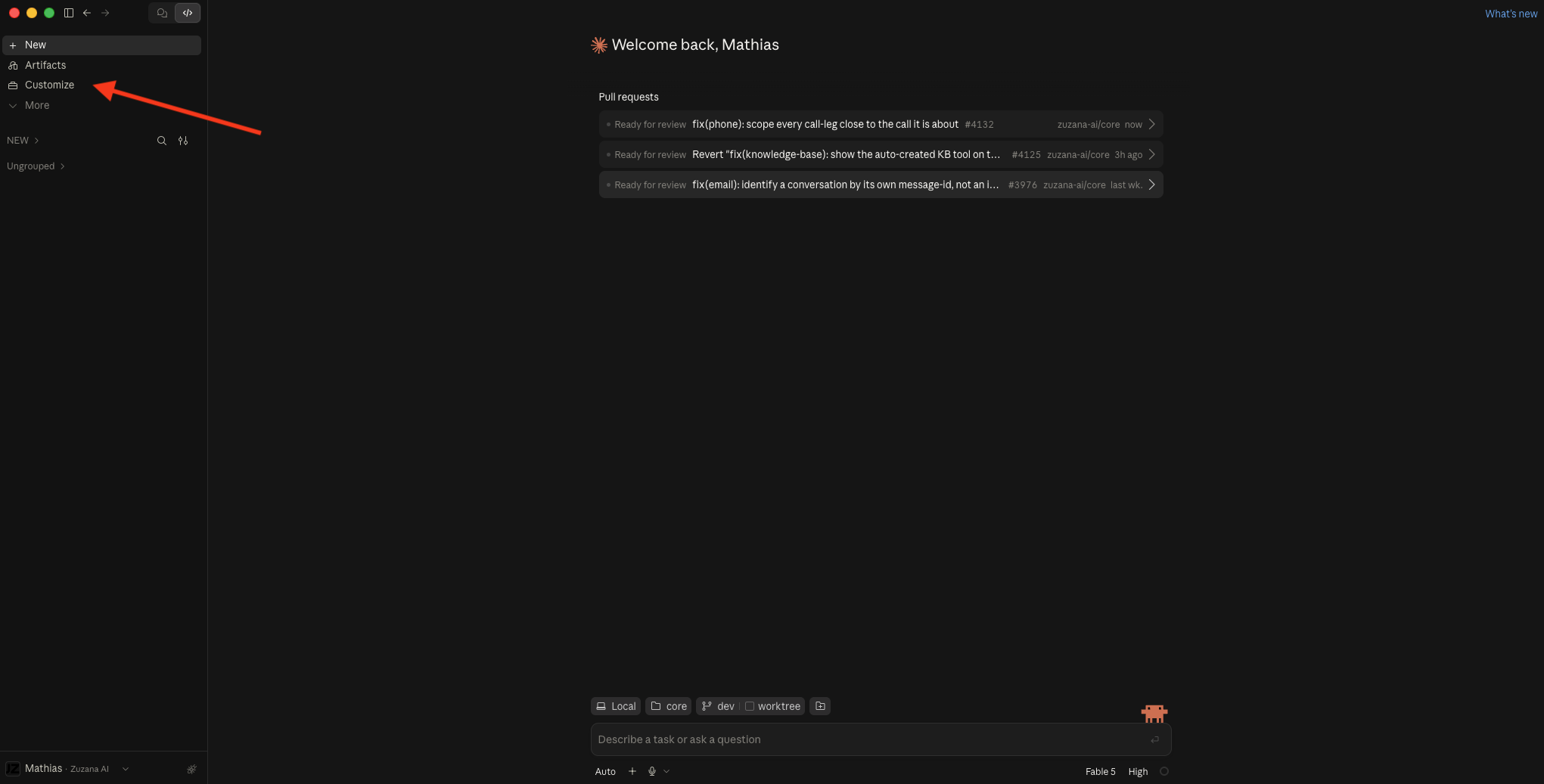
- Open Connectors. In the Claude sidebar, click Customize, then choose Connectors in the settings panel that opens. (On claude.ai: Settings → Connectors.)
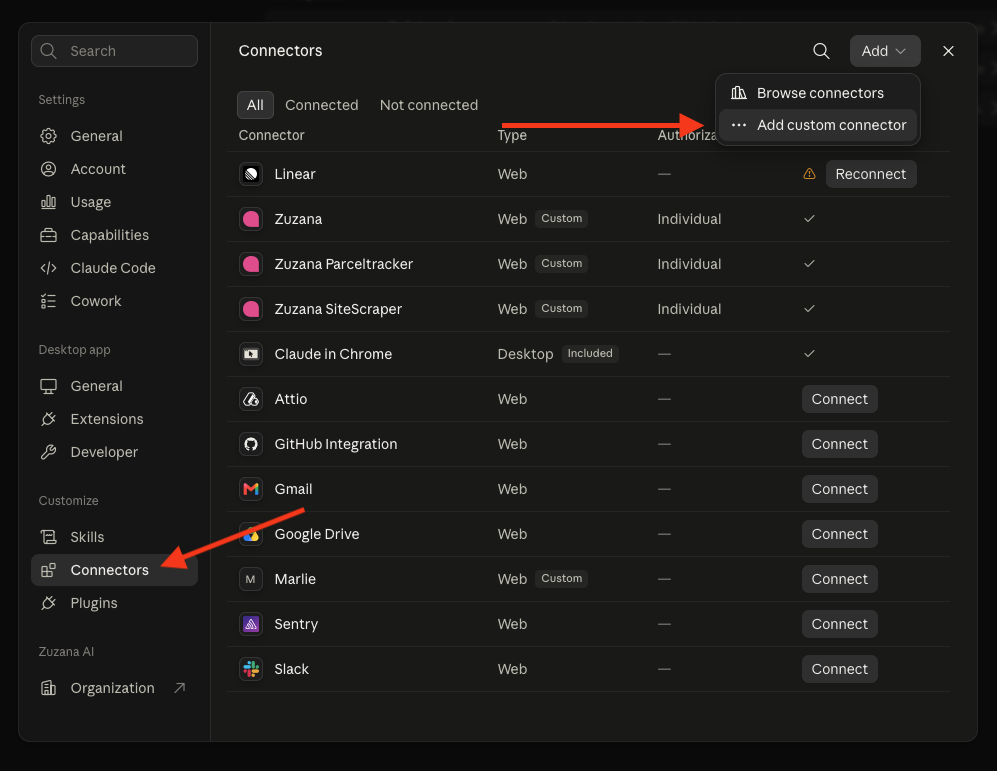
Step 1 - Add a custom connector. Click the Add button in the top right and pick Add custom connector from the dropdown.
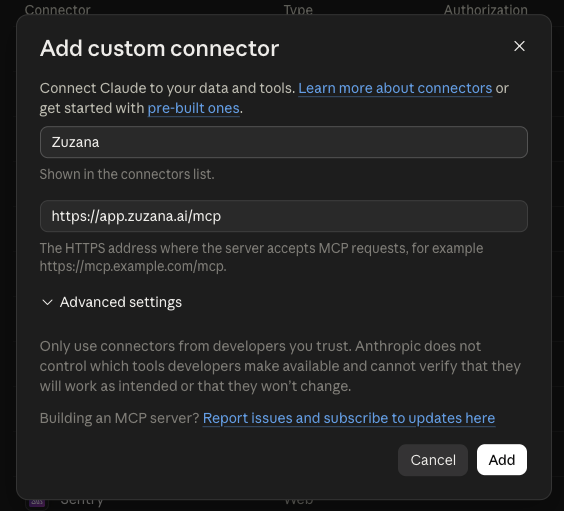
Step 2 - Fill in the name and URL, then click Add:
- Name: Zuzana
- Remote MCP server URL: https://app.zuzana.ai/mcp
Step 3
- Sign in when prompted. Claude opens Zuzana in your browser. Sign in with your Zuzana email and the code we send you, choose the team if asked, and click Authorize. The browser window closes (close it yourself if it stays open), and the connector shows a checkmark under Authorization = Individual.
- Use it. Start a new chat and ask something like "list my team's workflows". Claude picks the right Zuzana tool automatically.
Connect Claude Code
Run this in your terminal:
claude mcp add --transport http zuzana https://app.zuzana.ai/mcp
Then start Claude Code, type /mcp, pick zuzana and choose to authenticate. Your browser opens the same Zuzana sign-in and approval screens as for Claude. Add --scope user to the command if you want Zuzana in every project, not just the current folder.
Connect other AI tools to Zuzana's MCP server
Any MCP client that supports remote servers over HTTP with OAuth sign-in can connect. Add a remote (HTTP) server with the URL https://app.zuzana.ai/mcp and leave authentication on OAuth. The client finds Zuzana's sign-in and registers itself, so there is no client ID or secret to copy.
A client that can only run local servers on your own computer cannot connect directly.
What signing in looks like
- Continue sign in. If you are not already signed in to Zuzana in that browser, enter your email and click Send sign in code. Keep the window open.
- Enter your sign in code. We email you a 6-digit code. Type it into the same window and click Continue. The code works once and expires after 15 minutes. After 5 wrong tries it stops working; click Send another one for a new code.
- Authorize. The approval screen shows who you are logged in as, the Team dropdown if you are in several teams, and the permission Use MCP server. Click Authorize to connect, or Cancel to stop.
Note: there is no password. If you are already signed in to Zuzana in that browser, you skip the code and go straight to the approval screen.
How long an MCP connection lasts, and how to disconnect
- It stays connected while you use it. Your AI tool renews access quietly in the background. A connection left unused for 30 days has to sign in again.
- Disconnect from your AI tool. Remove or disconnect the Zuzana connector there (in Claude under Connectors, in Claude Code with claude mcp remove zuzana). There is no list of connected apps inside Zuzana.
- Cut off a colleague. Deactivate them: open them under Settings → General → Users, go to Advanced and press Deactivate user. Their MCP connections and API keys stop at once, and reactivating them does not bring those back. To keep them in the helpdesk but off MCP, change their role to User instead: the admin check runs on every call.
Using an API key instead of signing in
For scripts and tools that cannot do the OAuth sign-in, the MCP server also accepts a full-access Zuzana API key. It belongs to one admin and one team. You cannot create one in the app: ask Zuzana. A key limited to certain areas (for example conversations or metrics only) is refused with "This API key is scoped and cannot use this endpoint."
How the MCP tools are organised 🧰
Zuzana's MCP server has more than 90 tools, about half that only read and half that change something. Your AI tool sees them all, plus three helpers:
- search-tools-tool finds a tool from a plain description, including tools added after you connected.
- call-read-only-tool runs a reading tool found by search, and refuses anything that changes data.
- call-mutating-tool runs a changing tool found by search, and refuses reading tools.
Why this matters to you:
- Approvals. Reading tools are marked read-only. Changing tools are not, and the change helper is marked destructive on purpose, so an AI tool that asks before risky tools asks you before every change. Most let you allow reads automatically and keep approval on for changes.
- Nothing goes missing. If a client shows only part of the list, or an old one, the assistant still reaches every tool through search.
- Heavier analysis counts as a change. Diagnosing or replaying an AI run and starting a test run make the AI work again, so they may need your approval.
What the assistant can look up 🔎
- Conversations: list and filter tickets and chats (status, channel, market, who resolved them, dates), open one by ID or ticket number with its messages and events, and search past conversations by meaning.
- AI runs: list runs, see one step by step, and explain why the AI answered as it did (which workflows, policies, articles and searches it used). See Why did the AI answer that way?
- Metrics: ticket volume, AI resolution, response and resolution times, CSAT, macro usage, phone calls and more, split by day, market, channel, tag or agent, plus the conversations behind any number. Also the automation funnel (where conversations stop on the way to an AI answer) and health checks such as which workflows and policies perform and which topics have no workflow yet.
- AI setup: policies, guard rails and workflows (each with its change history), voice and style, tags, macros, knowledge articles, and test run results.
- Channels and routing: markets, automations, auto-closer rules, CSAT survey exclusions, flow queue order, chat flows, IVR flows, email signatures and autoresponder, sending domains, connected integrations and Shopify stores, and your actions.
- Help center navigation and custom reports, if your team has them.
- Ticket imports from your previous helpdesk and their progress.
What the assistant can change ✏️
- AI rules: create and edit policies, guard rails and workflows (and publish workflows), and update voice and style.
- Content: create and edit macros and knowledge articles (as a draft or published), email signatures, the from-name and the autoresponder. Articles can also be deleted.
- Markets and routing: markets and their conversation rules, business hours, automations, auto-closer rules, CSAT exclusions, flow queue order, and which markets a Shopify store serves.
- Chat and phone: chat widget flows, contact forms, IVR flows and voice prompts.
- Integrations: actions that call your own JSON API and their per-market connections, a website or Shopify product knowledge base, sending domains (and rechecking their DNS), and custom cards in the helpdesk.
- Testing: test suites and test cases, test runs, and sandboxed replays of an AI run.
- Imports: start or cancel a ticket import from your previous helpdesk, mark imported tickets as AI memory, and bulk-add contacts.
- Help center navigation, custom reports and suggested article changes, if your team has them. A suggested change waits for you to accept or dismiss it in the Helpcenter editor.
What Zuzana's MCP server cannot do 🚫
- No customer or order actions. It cannot refund, cancel or edit an order. It can set up actions for the AI, but never runs them against Shopify or other systems itself, and a replay runs in a sandbox where nothing the AI decides is carried out.
- No work in the helpdesk. It cannot reply to customers, send emails or bulk replies, or tag, assign, snooze, close or move conversations to a squad. Find the tickets with the assistant, then act on them in the helpdesk.
- Almost no deleting. Knowledge articles are the only thing it can delete. You can switch policies, workflows and IVR flows off, unpublish articles and remove single rules from a list. Deleting anything else is done in the app.
- No people settings. It cannot invite users or change roles, squads, departments or capabilities.
- No other teams. It only sees the team you chose when you connected.
- No new logins to other systems. Connecting Shopify, a helpdesk or another integration that needs its own sign-in is done in the app.
Safety: the MCP server runs as you
- Your login, your team. Every call checks that you are still an admin and still a member of the connected team.
- Changes are live straight away, exactly as if you had saved them in the app. Workflows only go live when published.
- Every change is logged with you as the author and MCP as the channel. A policy's or action's History page has a Via column showing Web, API, MCP or Console, and the assistant can read the change history of policies, guard rails and workflows.
- Ask for a plan first. "Show me what you would change, then wait for my OK" is a good habit for bigger edits.
Example prompts 💬
- "Which macros were used least over the last 90 days?"
- "Show me last week's chats in the Danish market that the AI handed over to a human."
- "Draft a new knowledge article about our returns process. Leave it unpublished."
- "Compare our CSAT this month with last month, per market."
- "Why did the AI answer ticket AB-1234 the way it did?"
- "Who changed our returns policy in the last two weeks, and what changed?"
- "Find tickets that have been waiting for the customer for more than 10 days."
- "Add a guard rail: never promise a delivery date."
Good to know
- Tools missing or out of date? AI tools keep the tool list from when they connected. Reconnect (or restart the app) to refresh it, or ask the assistant to use search-tools-tool, which always sees the full current list.
- "Only team admins can use the Zuzana MCP server" means your role is User. Ask an admin to connect, or to give you the Admin role.
- "This API key is scoped and cannot use this endpoint" means the key is limited to certain areas. Use the sign-in, or ask Zuzana for a full-access key.
- "No tenant resolved for this request" means you are no longer a member of the team you connected to. Reconnect and pick a team you belong to.
- Answers about the wrong brand or team? The connection is pinned to the team you picked when you approved it. Disconnect, connect again and choose the right one in the Team dropdown.
- Sign in code expired or locked? Codes last 15 minutes and allow 5 tries. Click Send another one.
- No rate limit on Zuzana's side. Long lists come back in pages (up to 100 conversations at a time), so a big question can take the assistant many calls.
Did this answer your question?