

Shopify: Creating a Custom App
🚀 Guide: Connecting Zuzana to Your Shopify Store
Follow this step-by-step tutorial to create a secure, custom connection between your Shopify store and Zuzana. This process ensures your data remains private and your integration is optimized for performance. FYI: Keep in mind that has to be done by a Shopify Admin.
Phase 1: Create Your App
The first step is to register a new application within the Shopify developer ecosystem.
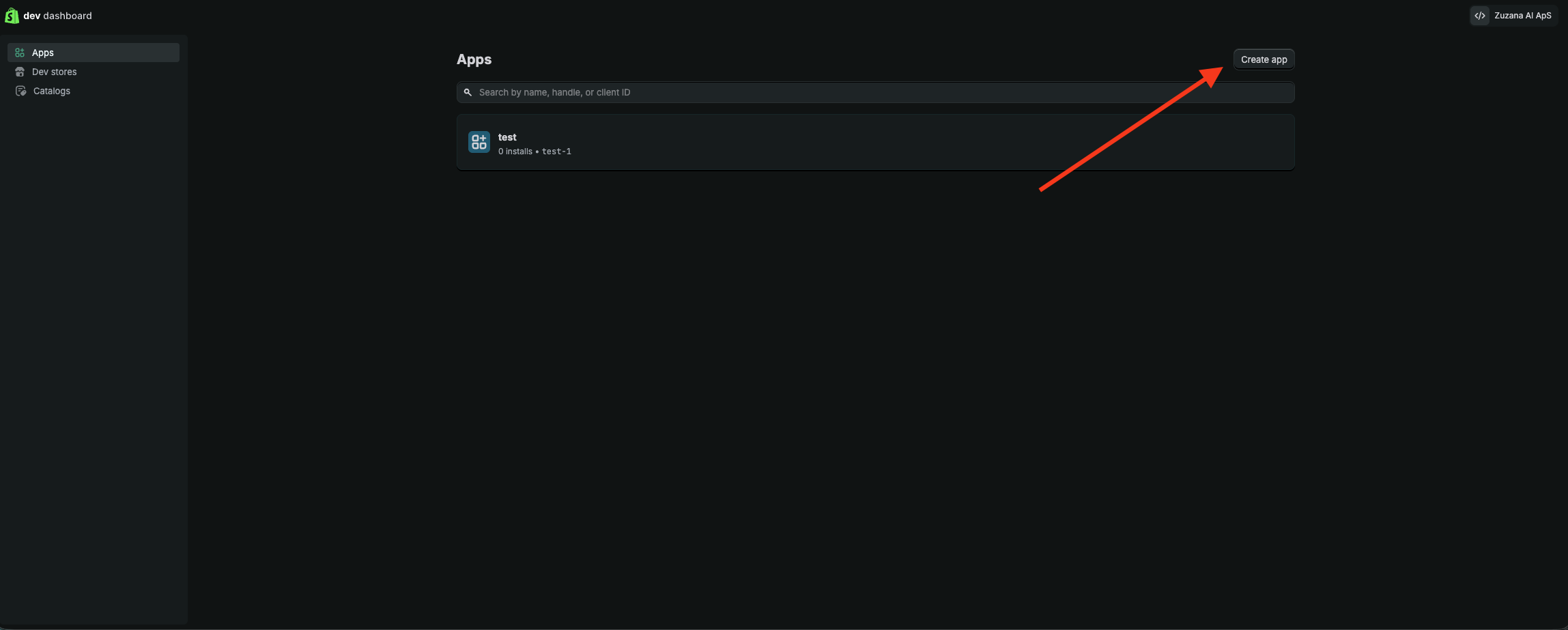
Access the Dashboard: In your Shopify admin, go to Settings > Apps and sales channels > Develop apps and click Build apps in Dev Dashboard. In Zuzana, the Open Shopify app settings button on the Add Shopify Store page takes you straight to that screen. This opens the Shopify Dev Dashboard for the organization that owns your store.
Start Creation: Click the Create app button in the top-right corner.
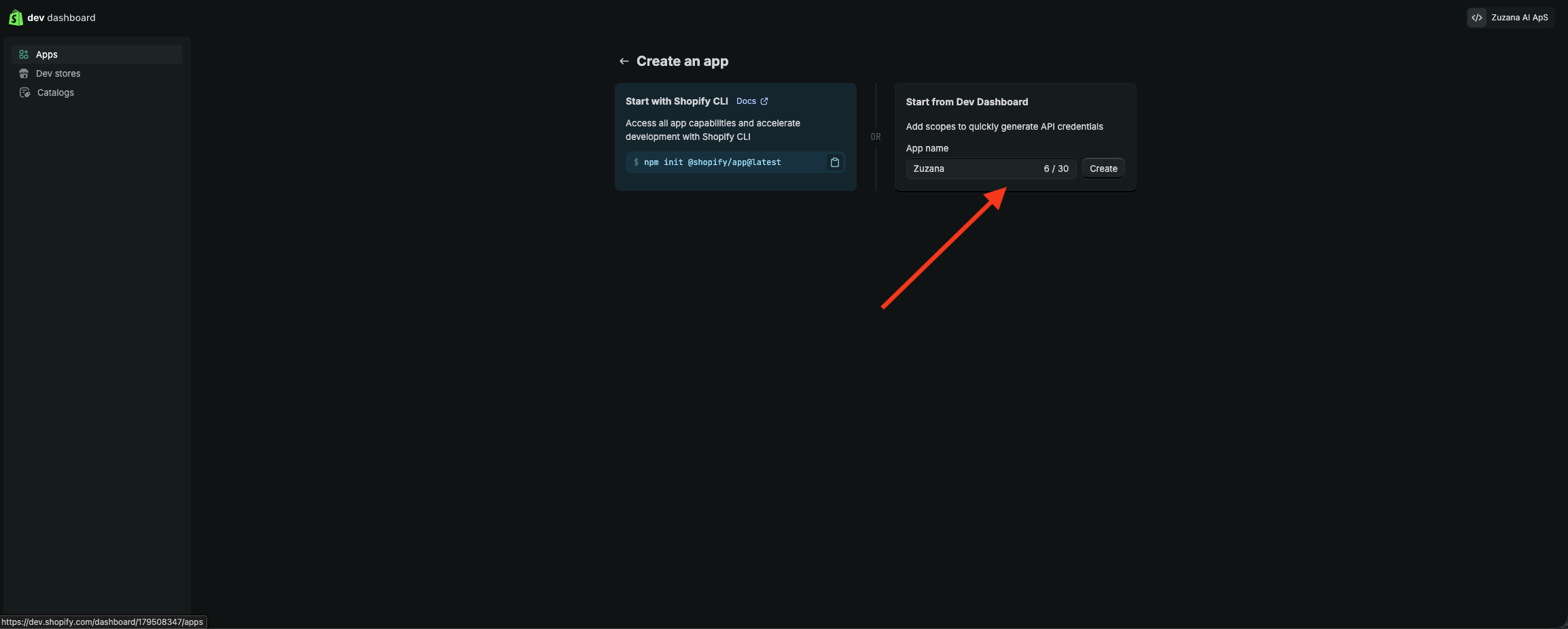
Choose Integration Type: On the selection screen, choose Start from Dev Dashboard. This is the standard method for private, custom integrations.
Name Your App: In the "App name" field, enter Zuzana. Click Create to proceed.
Phase 2: Configure Permissions & URLs
Now you must tell Shopify exactly what data Zuzana is allowed to access and where to send it.
Navigate to Versions: From your app's home screen, click the Versions or Configuration tab.
Create a New Version: Click Create version.
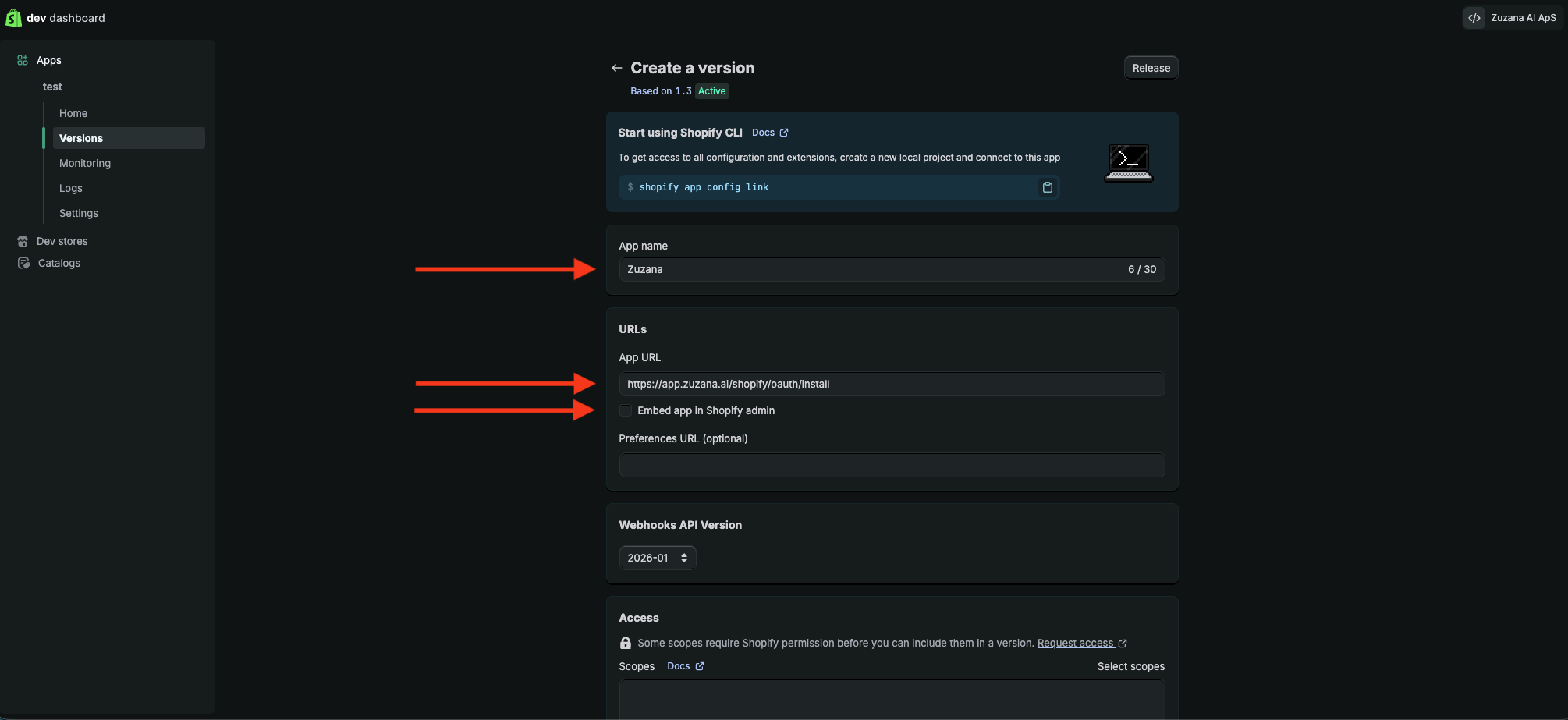
Specify App name: Put "Zuzana" or something (not really important).
In URLs section:
Copy & paste this App URL: https://app.zuzana.ai/shopify/oauth/install
Uncheck "Embed app in Shopify admin"
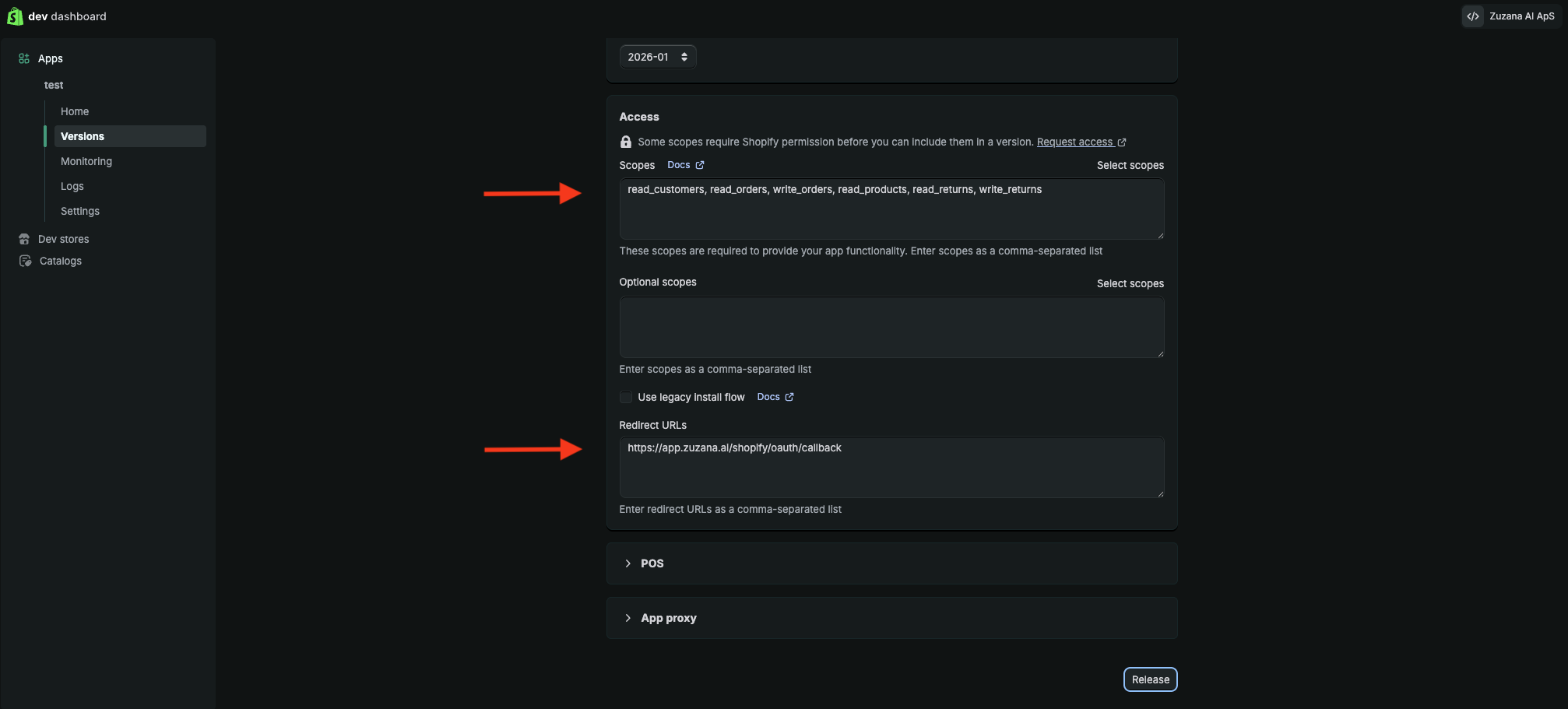
Scroll down to Access section. In the Scopes text area, copy and paste the following permissions exactly:
write_orders, read_products, write_returns, write_customers, write_merchant_managed_fulfillment_orders, read_themes, write_themes, write_draft_orders
Configure Redirect URLs:
Copy & paste: https://app.zuzana.ai/shopify/oauth/callback
Finalize Version: Scroll down and click Create version. You should see a confirmation that "Version 1.0" (or similar) has been successfully created.
Phase 3: Release & Install
Release the Configuration: On the version history page, click the Release button next to your newest version.
Confirm Release: A prompt will appear; select Release this new version. This activates your settings.
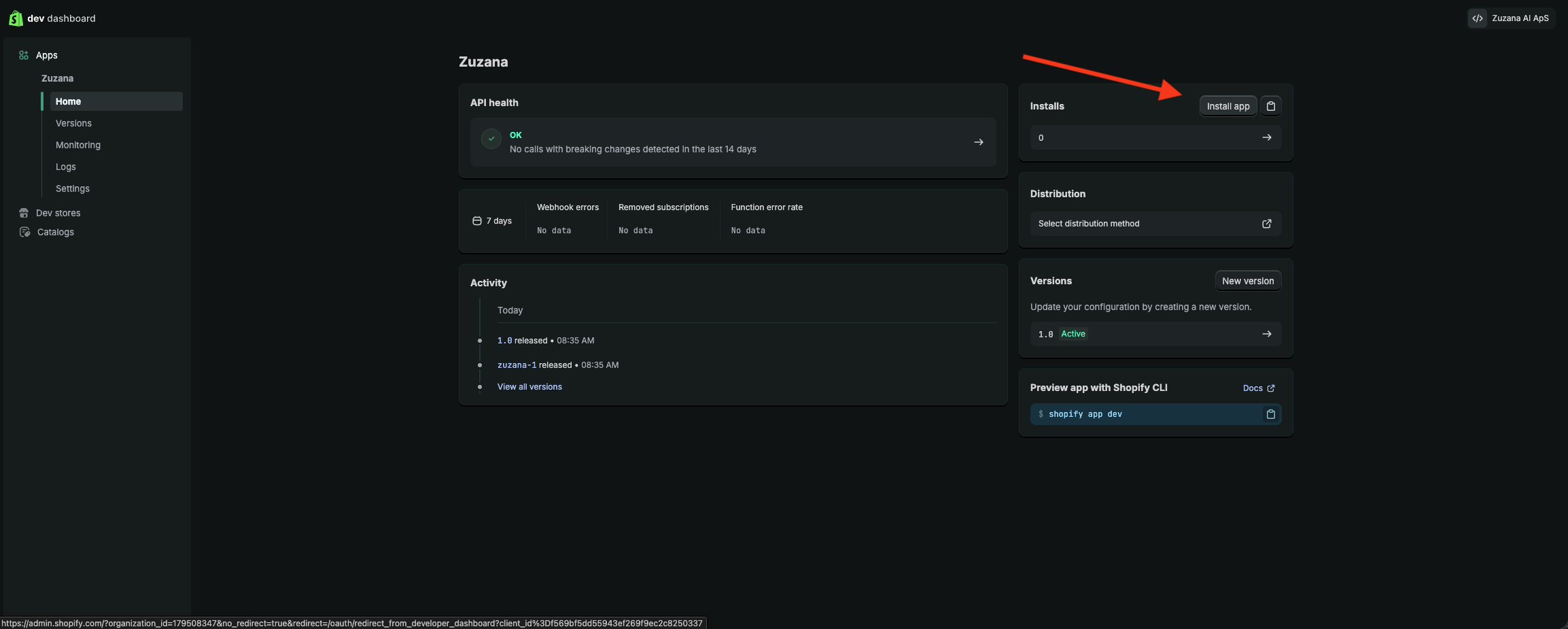
Initiate Installation: Go back to the Home/Overview tab of your app.
Install to Store: Click the large Install app button.
Authorize: Select your Shopify store from the list and click Install on the Shopify Admin authorization page. A custom app can only be installed on one store (see "Multiple Shopify stores" below).

Phase 4: Keys
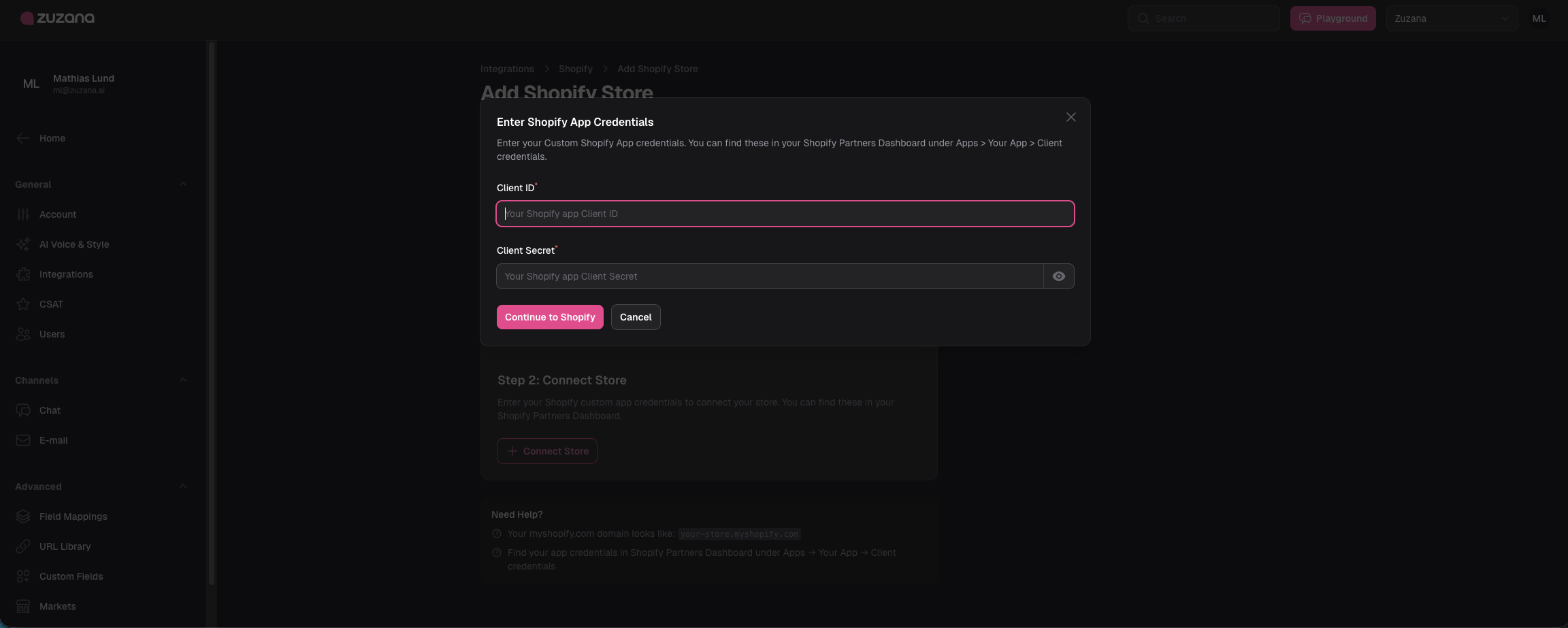
In Zuzana, go to Integrations > Shopify and open Add Shopify Store. Enter your store domain (eg. yourstore.com or XXXX.myshopify.com) and click Detect Store.
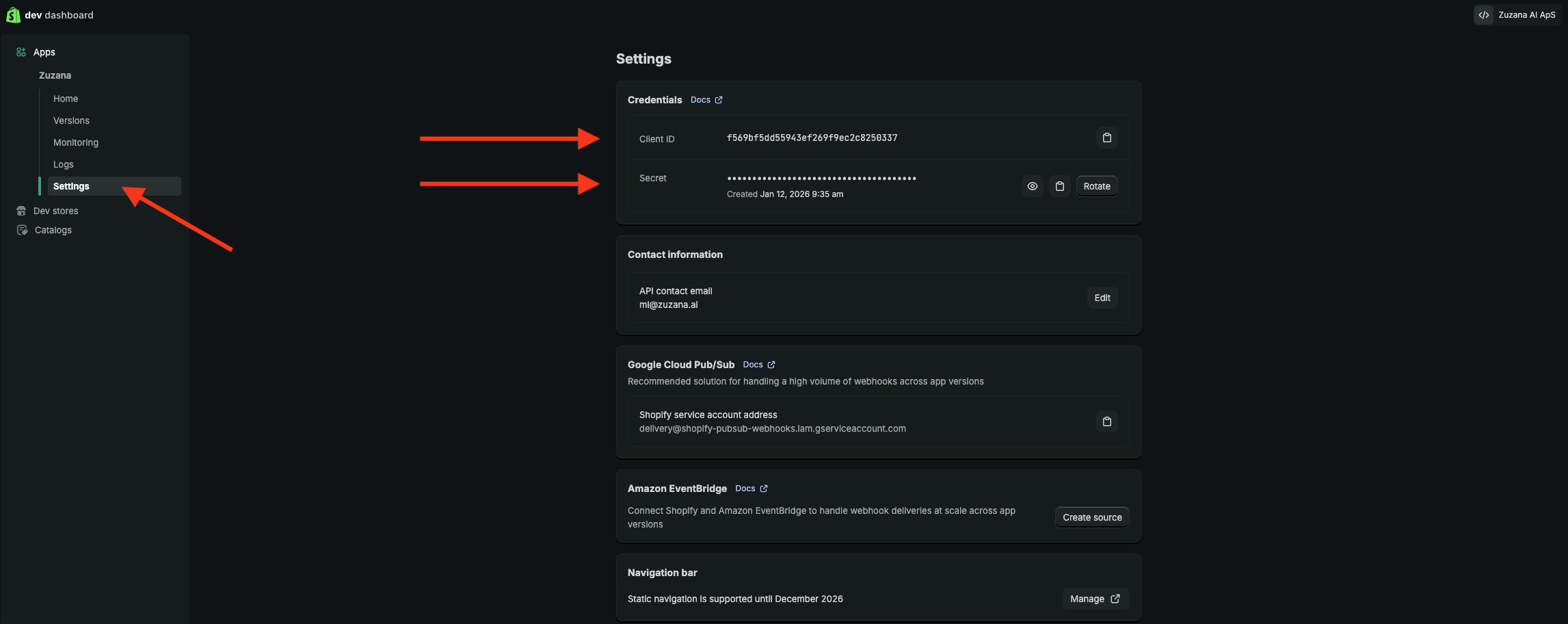
In Step 3, click Connect Store. Go back to your Shopify Dev Dashboard, open your app's settings, find the Client ID & Client Secret and paste them into Zuzana.
You're done! 💪
Multiple Shopify stores
A Shopify custom app is tied to a single store. How many apps you need depends on your Shopify plan:
Shopify Plus organization: One app can then be installed on every store in that organization.
Not on Shopify Plus: Shopify does not allow a custom app to be installed on more than one store. Repeat this guide once per store: create a separate app in the Dev Dashboard, install it on that store, and connect it in Zuzana with that app's own Client ID and Client Secret.
Did this answer your question?