How to setup Mirror mode on Gorgias
How to setup Mirror mode on Gorgias.
Published Mar 18, 2026
Step 1: Access HTTP Integrations
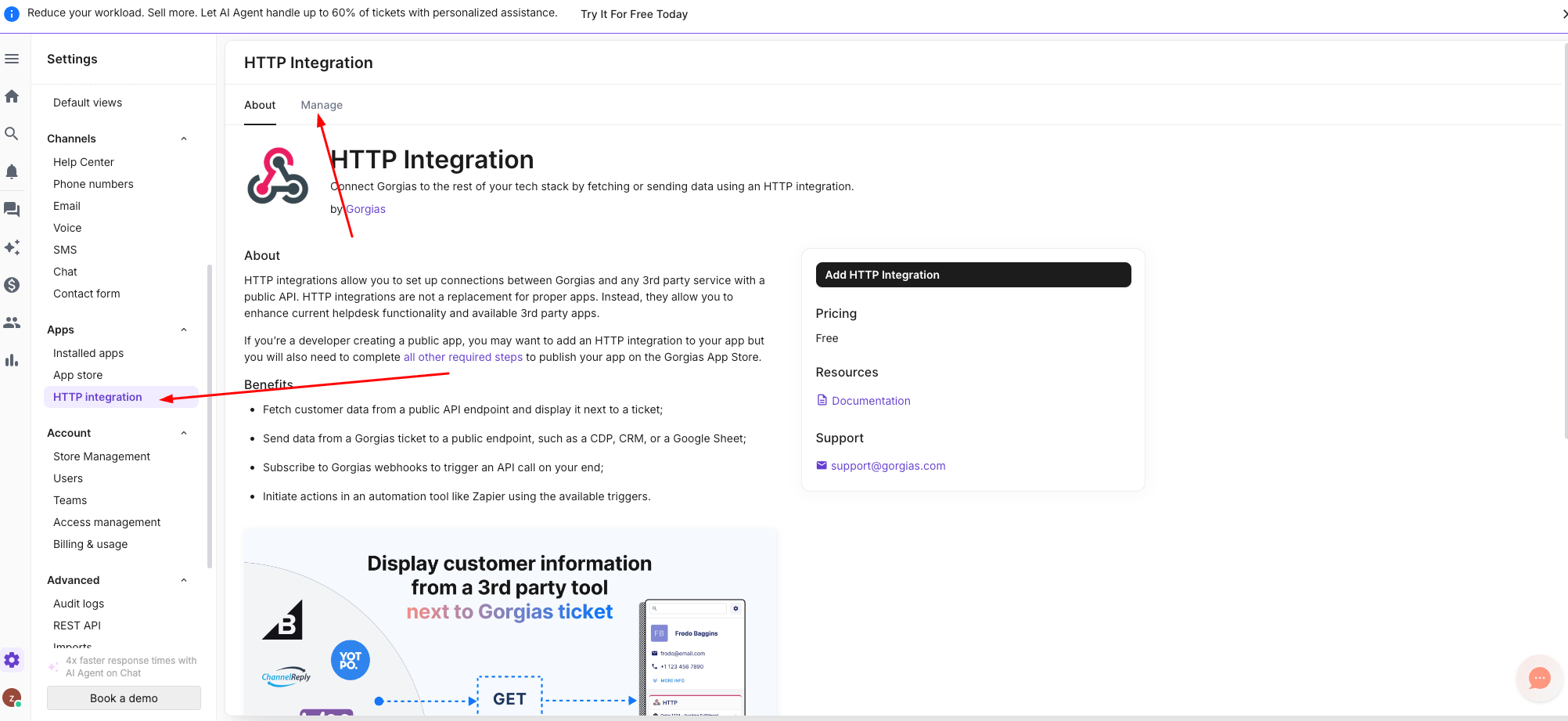
- Open your Gorgias dashboard.
- Click on the Settings icon (gear icon) in the bottom left corner.
- In the left-hand sidebar, look under the Apps section and select HTTP integration.
Step 2: Create a New Integration
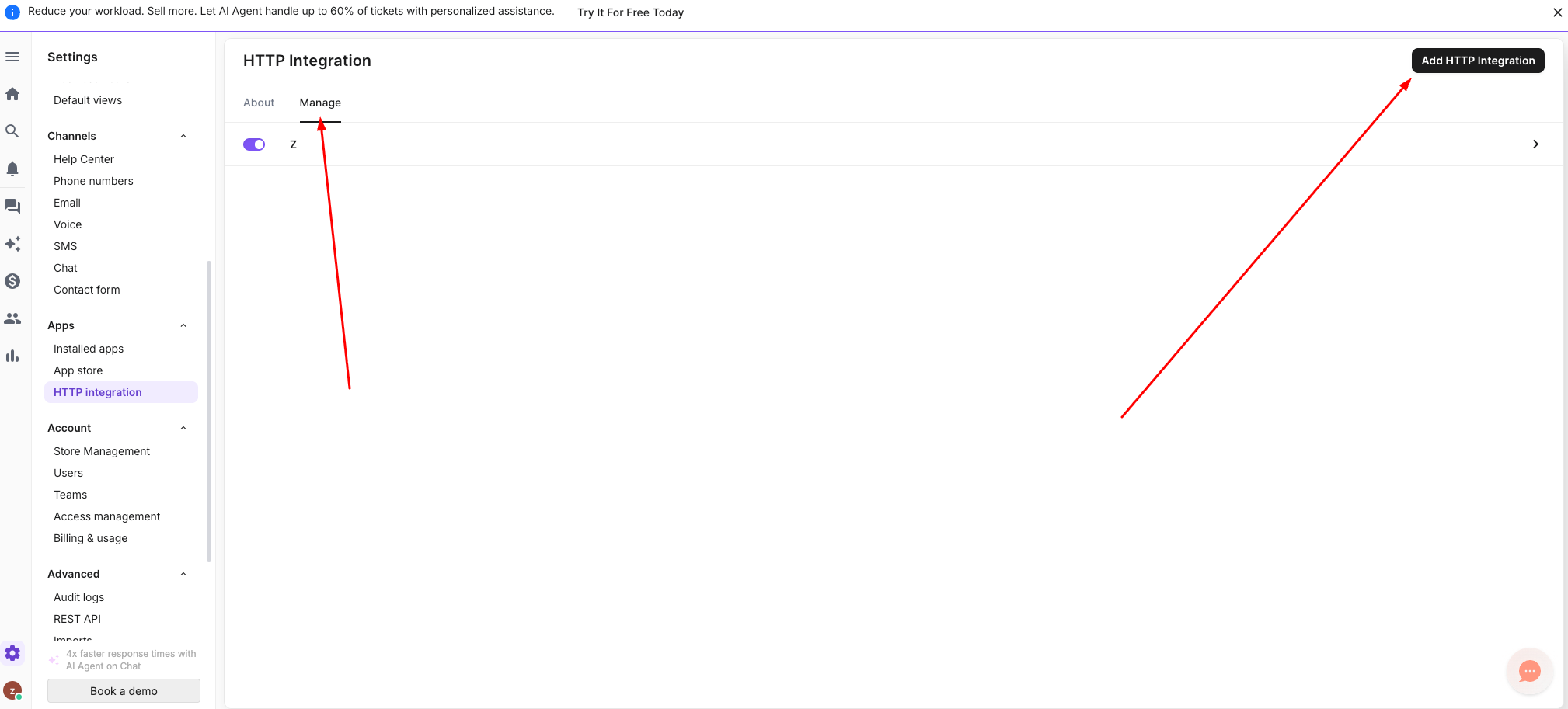
- At the top of the page, click on the Manage tab.
- Click the Add HTTP Integration button located in the top right corner.
Step 3: Configure Basic Settings
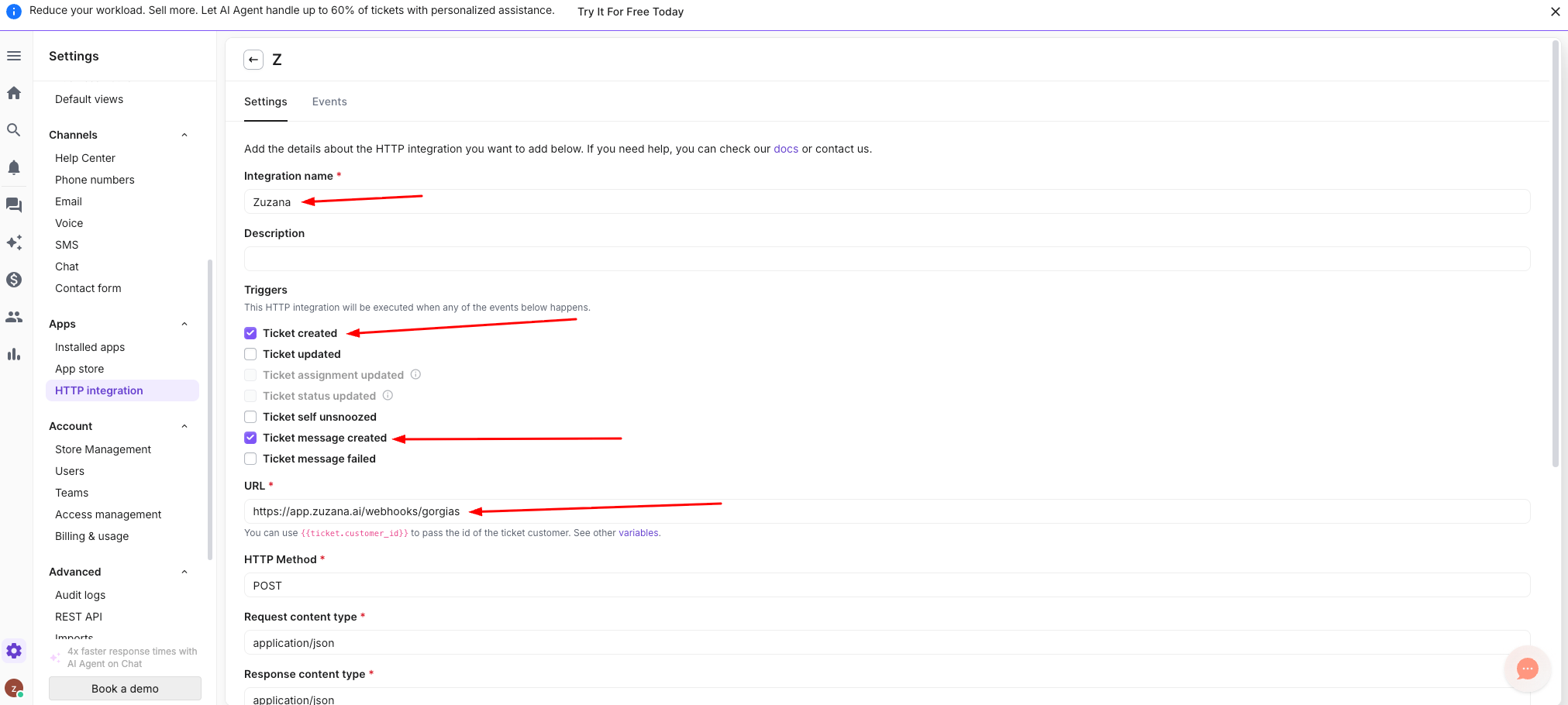
Fill in the following details as shown in the screenshots:
- Integration name: Enter Zuzana.
- Triggers: Check the boxes for:
- Ticket created
- Ticket message created
Step 4: Set the Endpoint Details
Scroll down to the connection settings and enter the following:
- URL: https://app.zuzana.ai/webhooks/gorgias
- HTTP Method: Select POST from the dropdown.
- Request content type: Select application/json.
- Response content type: Select application/json.
Step 5: Define the Request Body
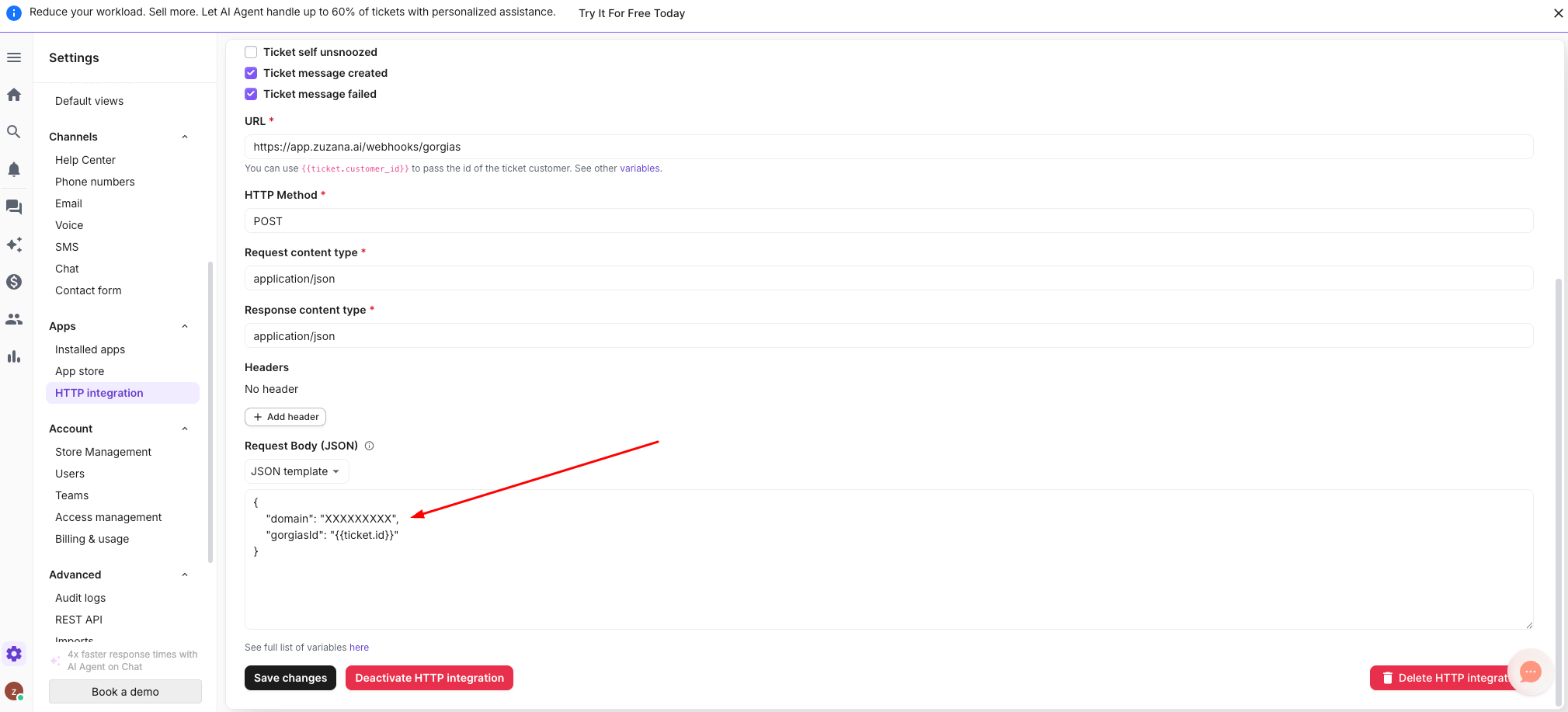
Scroll down to the Request Body (JSON) section. Select JSON template from the dropdown and paste the following code:
{
  "domain": "XXXXXXXXX",
  "gorgiasId": "{{ticket.id}}"
}
Note: Replace "XXXXXXXXX" with your actual Gorgias domain name - eg. take the subdomain https://XXXXXXXXX.gorgias.com.
Example: https://zuzana.gorgias.com
{
  "domain": "zuzana",
  "gorgiasId": "{{ticket.id}}"
}
Step 6: Save and Activate
- Click the Save changes button in the bottom left corner.
- Ensure the integration toggle is turned ON (it should appear purple in the Manage list).
Related Articles