How to embed your Chat widget on your Shopify store
To install the Chat widget on your Shopify Store you need to create a Snippet in your Shopify theme code containing your unique Zuzana script. Then, you simply render that snippet at the bottom of your theme.liquid file so it appears on every page of your site.
Published Feb 25, 2026
Step 1: Access the Theme Editor
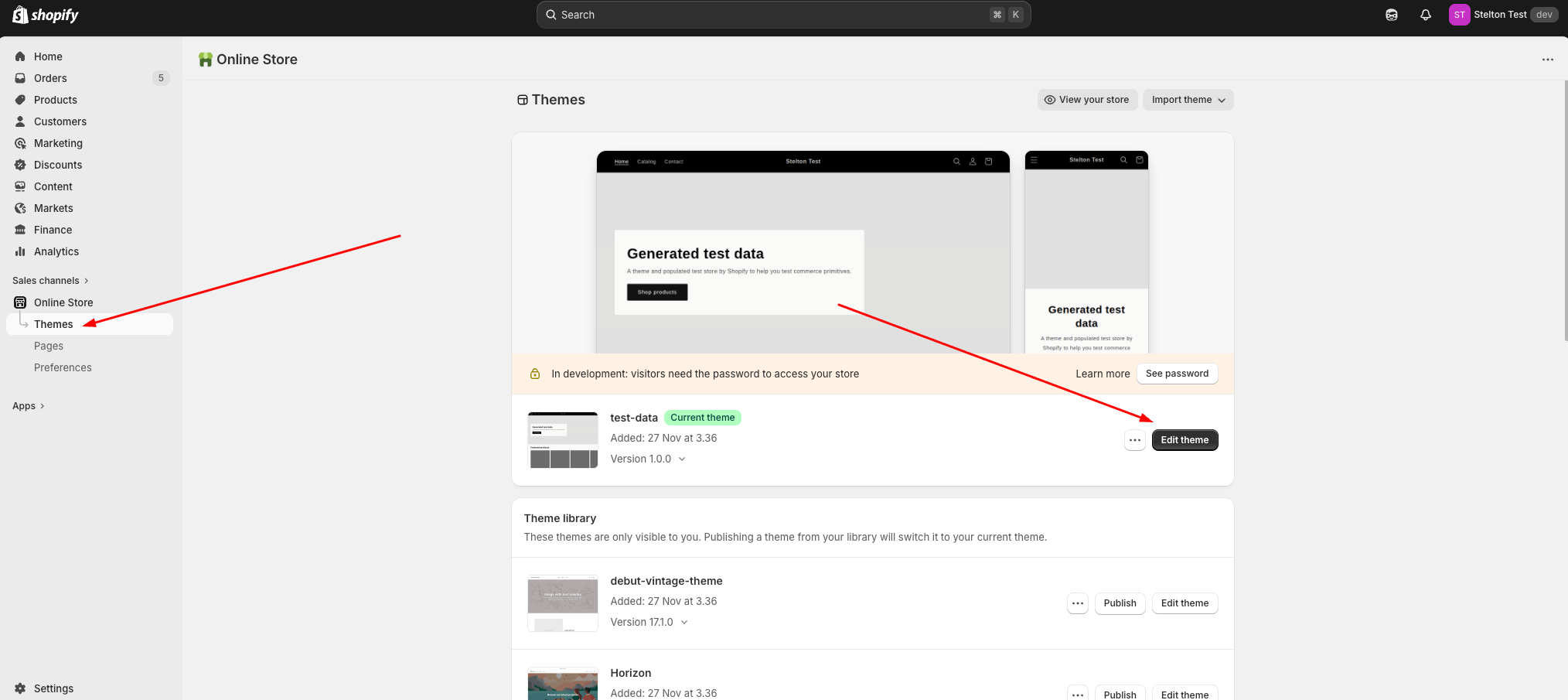
Log in to your Shopify Admin. Navigate to Online Store > Themes. Locate your current live theme and click the Edit theme (or "Customize") button.
Step 2: Open the Code editor
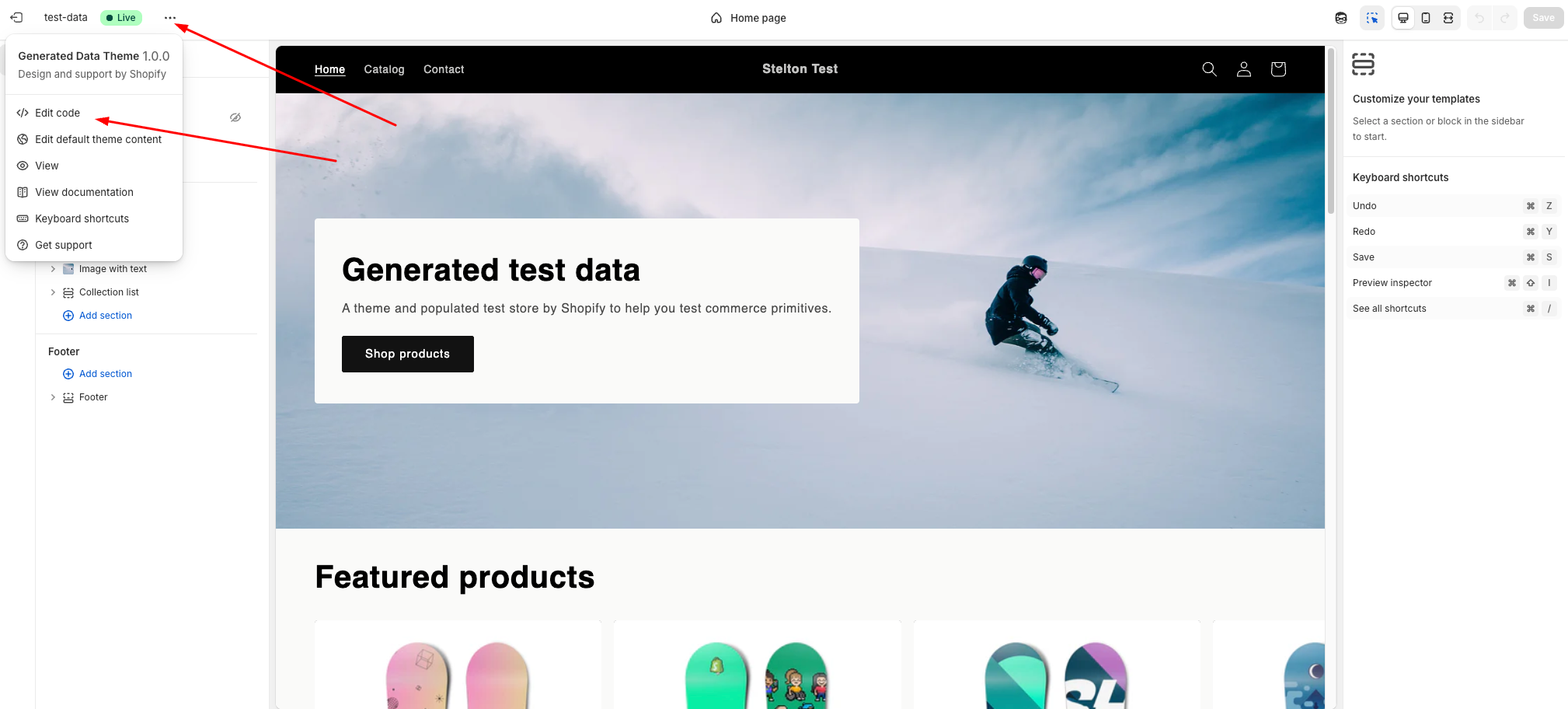
Once inside the theme customizer, click the three dots (...) in the top left corner next to your theme name and select Edit code from the dropdown menu.
Step 3: Create a New Snippet
In the left-hand sidebar of the code editor:
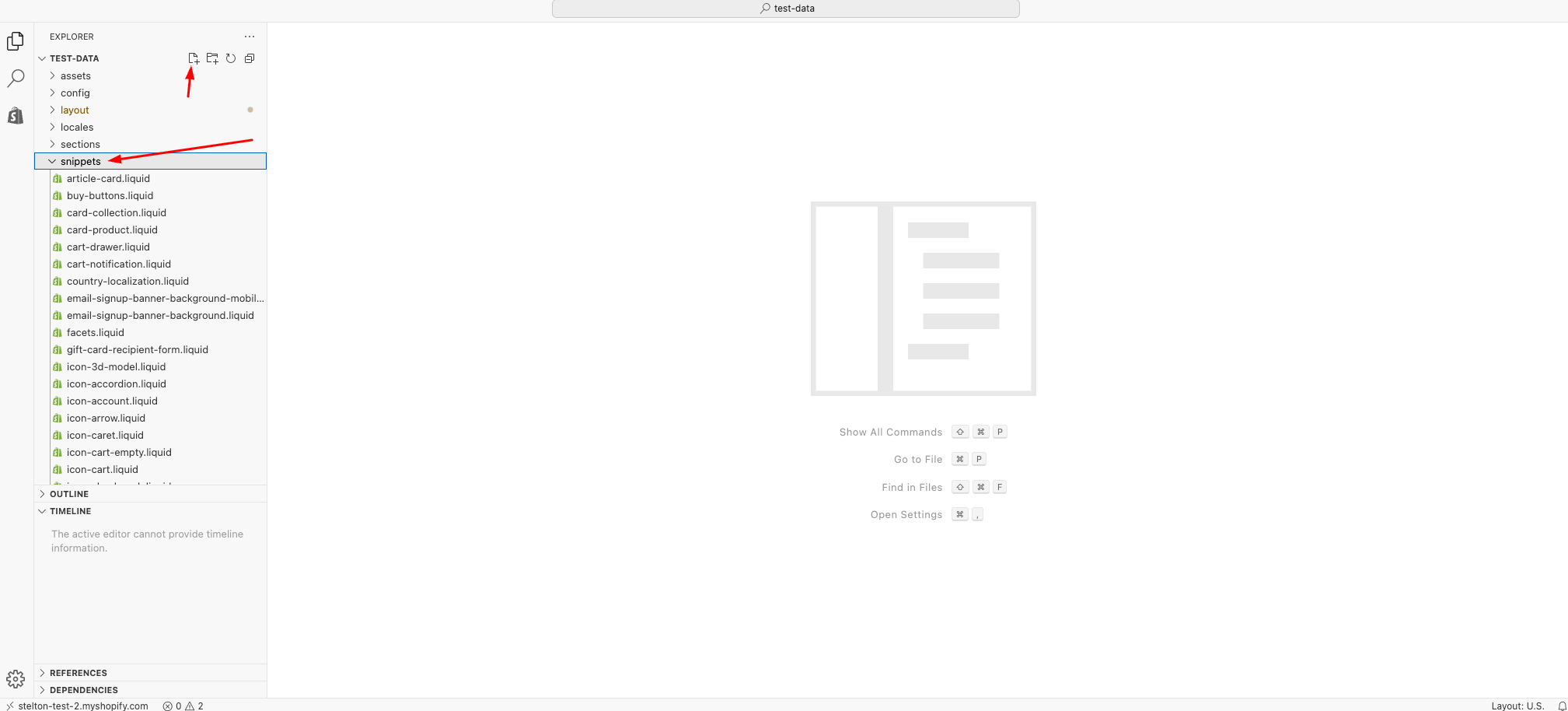
- Scroll down to the Snippets folder.
- Click Add a new snippet.
- Name the snippet "zuzana-chatbot.liquid"
Step 4: Insert the Widget Script
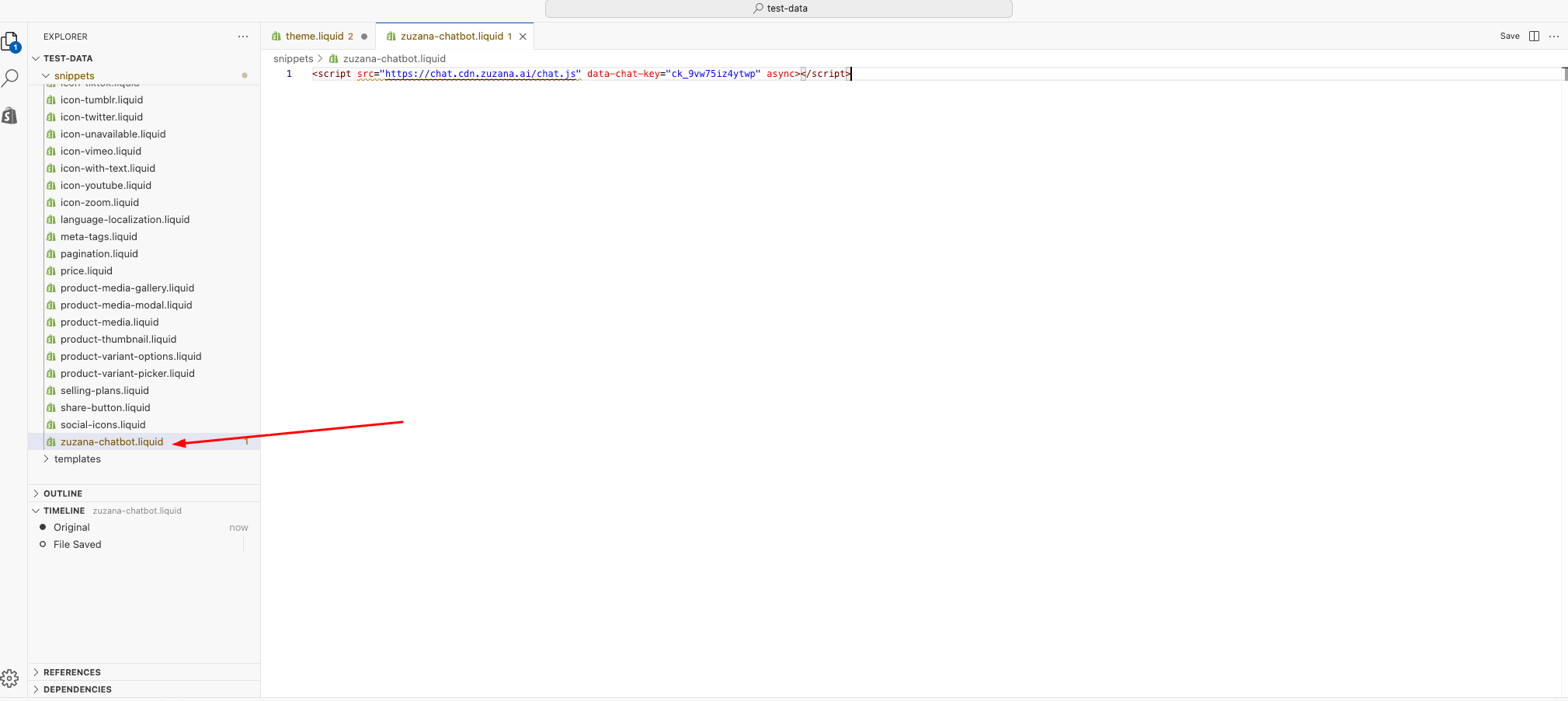
Open your new "zuzana-chatbot.liquid" file and paste your unique script code from Chat settings. It should look like this:
<script src="https://chat.cdn.zuzana.ai/chat.js" data-chat-key="YOUR_UNIQUE_KEY" async></script>
Make sure to save the file after pasting.
Step 5: Render the snippet
Now, you need to tell Shopify where to display the chatbot:
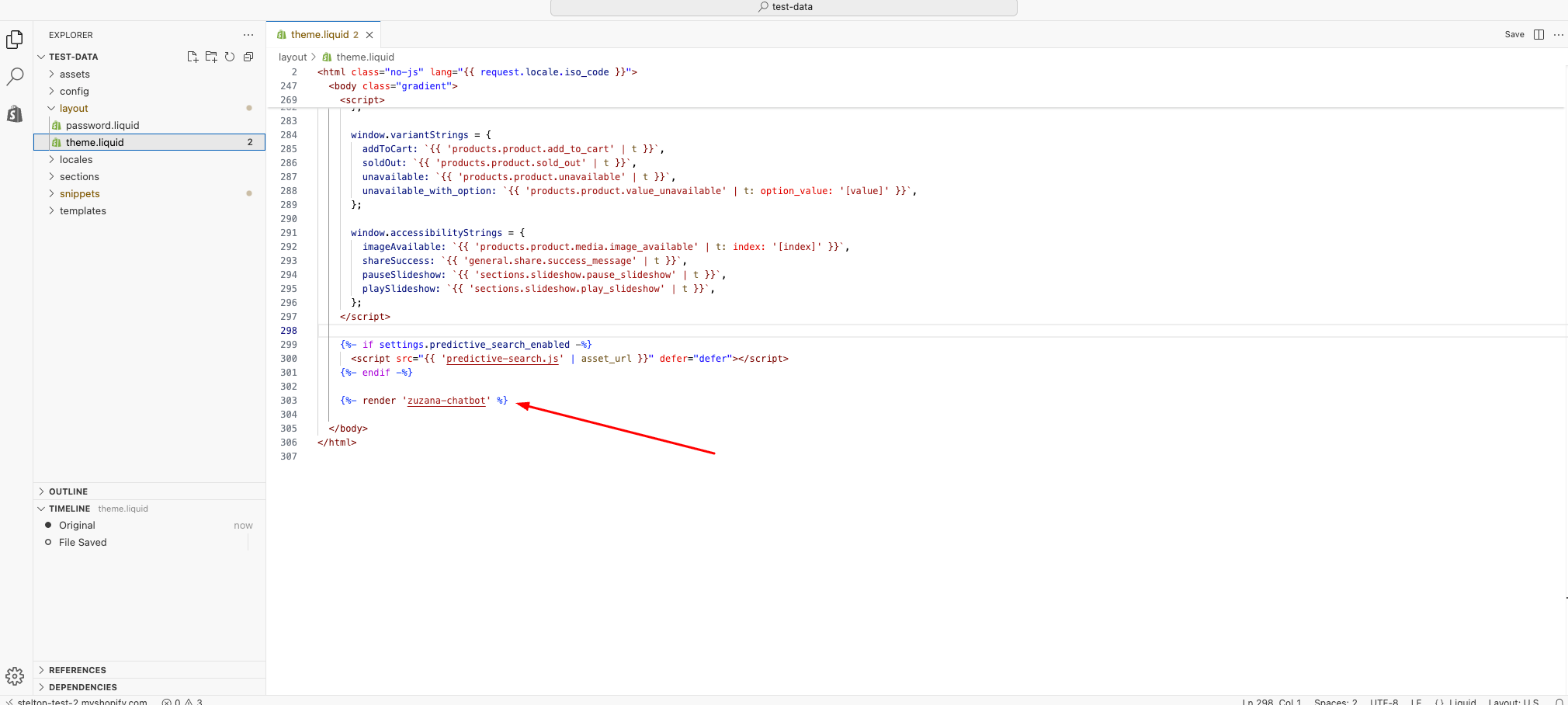
- Under the Layout folder, open the theme.liquid file.
- Scroll to the bottom of the file and locate the closing </body> tag.
- Just above the </body> tag, add the following line of code: {% render 'zuzana-chatbot' %}
- Click Save.
Success!
Your chatbot should now be live on your storefront.
Related Articles